.svg)
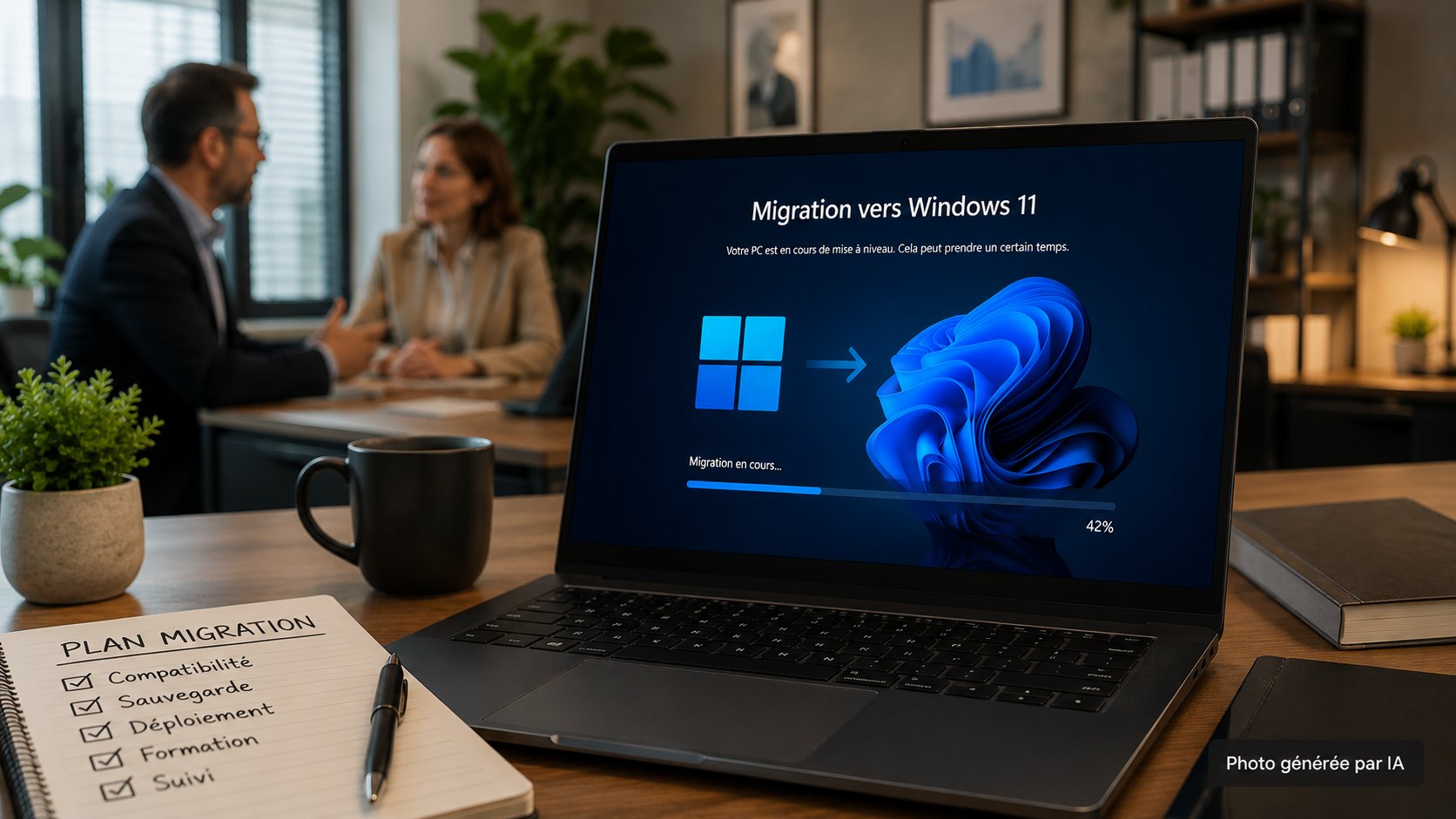
Successfully transferring data from one PC to another in Windows 11—without losing any files or interrupting your workflow—requires a bit of planning. Here are the available options, the checks you should perform beforehand, and the key steps to follow, whether you’re using Windows’ built-in tool, third-party software, or external storage.
Prepare and choose your method for upgrading to Windows 11
Before any migration, an audit of the IT infrastructure is the first step. It helps identify sensitive data, applications, locally stored files, and workstations that cannot be taken offline. From there, the choice of method becomes more reliable, and the risk of system lockups decreases significantly. To manage this phase, IT Systèmes offers a Windows 11 migration service that covers the audit, preparation, and deployment.
Why Plan Your Move Before Relocating
A poorly planned migration can quickly lead to data loss, software incompatibilities, or business disruptions. Identify each affected workstation, the software installed, the peripherals, and the personal files that need to be retained. In practice, this preparation also helps identify data flows between applications, APIs, and automations that must continue to function after the workstation is replaced.
- Hardware and software inventory: Identify system versions, business applications, and related equipment to anticipate compatibility issues.
- Mapping dependencies: identifying data exchanges between software systems, interfaces, and automated processes to prevent any disruptions after the switchover.
- Pilot migration: Test the procedure on a few representative workstations before rolling it out to the rest of the fleet.
The decision remains: an internal switchover, or managed support? It depends on two factors—the expected responsiveness, and your ability to handle an incident on D-Day. Managed support is particularly justified when the environment is fast-paced: multi-site environments, critical systems.
Switching from an old computer to a new one involves more than just moving files. It is also necessary to set up standard configurations with the correct settings to avoid inconsistencies between workstations. These configurations reduce the need for corrective support after the migration and simplify the maintenance of the computer fleet.
The Windows 11 native tool: how it works and system requirements
For single-PC migration, Microsoft is rolling out a transfer feature built into the Windows Backup app. It’s important to note that the rollout is gradual and still incomplete. The pairing page between the two PCs already exists, but full migration during the initial setup of the new computer will not be available until future updates. In practice, the option may not yet appear on your computer.
The tool pairs the old and new computers using a temporary code generated during setup. A plus for small and medium-sized businesses: if the network goes down during the copy process, Windows automatically resumes the transfer.
These prerequisites must be verified before starting the process. The old PC must be running Windows 10 or 11 with the latest updates, and the new PC must be running Windows 11 24H2 or later. Both machines must be on the same network—via Wi-Fi or Ethernet—and remain powered on throughout the transfer.
- System compatibility: Check the Windows versions on both computers before attempting to connect.
- Local connection: Make sure the old and new computers are on the same network.
- Managing your Microsoft account: Be prepared in case a OneDrive backup already exists on the account, as this situation prevents the native tool from working.
Once these conditions are met, the process becomes more reliable for small and medium-sized businesses, where every fixed asset has a direct impact.
What data is transferred, and what data is excluded?
The built-in tool recovers personal files, certain standard folders, and user settings: the Desktop, Downloads, and Favorites, as well as preferences such as the wallpaper or theme.
However, it does not recreate an identical computer. Installed apps, saved passwords, OneDrive content—none of this is automatically transferred. When you first open the new computer, some apps will reinstall themselves, while others must be reinstalled manually from their respective websites.
One point to keep in mind concerns volumes protected by BitLocker. If the drive is not unlocked before copying, the data may not be accessible on the new computer. You can also choose which folders to copy, especially if the new computer has less storage capacity than the old one.
If the native tool does not fully meet the need, an additional transfer via external storage remains a viable option for files located outside standard profiles. To ensure the security of this sensitive step, IT Systèmes also outlines its secure migration approach tailored to small and medium-sized businesses.
Alternative ways to transfer your files to Windows 11
When the native tool reaches its limits, several options are available depending on the volume to be moved, the desired level of automation, and whether programs need to be transferred.
Third-party software and automated file transfer
Dedicated migration software goes far beyond simply moving files. It handles the transfer of files from one PC to another, as well as certain user profiles, network connections, system settings, and—depending on the tool—some of the installed programs. Getting the new computer up and running is faster and involves fewer oversights than manual migration.
- Several migration methods: over the network, locally, or via an image—useful when the source machine is isolated or when the migration needs to be prepared in advance.
- Broader coverage: MS Office, Photoshop, Dropbox, and various business tools can be imported, whereas the native wizard is limited to basic files and settings.
- Data recovery from a crashed computer: Some software providers can recover data from a computer that no longer boots up, provided the hard drive remains readable.
- More consistent deployment: When used with Intune, MDT, or Autopilot, these tools standardize workstations across a large fleet.
These solutions are typically installed on both machines and start the copy process once the connection is detected. In an SME or mid-sized business environment, scheduling the operation outside of business hours minimizes disruptions and prevents users from working on data that is still being transferred.
Transfer via USB drive, external hard drive, or the cloud
If you don't use any specialized software, an external hard drive or USB flash drive is still a simple way to recover data from an old PC. The process is straightforward: connect the storage device to the old computer, copy the files you need, safely eject the device, and then connect it to the new computer.
This approach works well for moderate volumes and when the focus is primarily on documents. However, it does not transfer programs and increases the risk of overlooking folders, profiles, or settings. It remains essential to list business directories, application exports, and non-standard locations on the source machine before copying.
The cloud is another option, especially if the source device already uses OneDrive, Google Drive, or Dropbox: synchronization makes the data available on the new device without the need to transfer media. This is convenient when the environment changes rapidly—such as with mobile devices, remote work, or the gradual replacement of machines.
However, this method requires a stable connection and can become more expensive as file sizes increase. For smaller files and local use, Quick Share offers a wireless alternative between two nearby devices. Prerequisites: Permissions, Wi-Fi, Bluetooth, and visibility settings must be checked on both devices before the transfer.
Comparison of Transfer Methods
| Method | Migrated applications | Recommended volume | Network dependency | Cost |
|---|---|---|---|---|
| Native Windows 11 tool | No | Average | Yes (same network) | Free |
| Third-party software | Yes | High | Optional | Affordable to free |
| Hard drive / USB flash drive | No | Moderate | No | One-time hardware cost |
| Cloud (OneDrive, Drive) | No | Variable | Yes (internet connection) | Volume-based subscription |
| Quick Share (peer-to-peer) | No | Low to moderate | Wi-Fi Direct / Bluetooth | Free |
Securing and Completing the Migration to Windows 11 in Small and Medium-Sized Businesses
Simply transferring files isn't enough. For a migration to be sustainable, you need to verify data integrity, restrict access, and provide structured user support. The benefits are clear: fewer silent data losses, fewer configuration discrepancies, and operational readiness from day one.
Verification of the integrity and compliance of transferred data
A migration is validated after the transfer, not before. You must compare the volumes between the source and the target, verify critical files using MD5 or SHA-256 hashes, and set up alerts in case of discrepancies. This process applies regardless of the method used: native tools, third-party software, or external drives. The final verification is also performed on the new system: opening files, checking permissions, and testing actual access.
- Volume comparison: Verify, batch by batch, that the total copied volume matches the reference backup exactly.
- Hash-based consistency check: Calculate the hashes of sensitive files before and after migration to detect any subtle corruption.
- Tested rollback plan: Validate the procedure before the final switchover to ensure a smooth return to the previous state without prolonged downtime should an issue arise.
This step also serves to clean up the existing data. Standardizing names, removing duplicates, and ensuring the reliability of the data sources before the copy process reduces the volume of data to be moved and simplifies quality checks. With a clean dataset, discrepancies are easier to identify and corrections are much less costly.
Security, user support, and a fallback plan
The security of a migration relies on multiple layers: BitLocker disk encryption (with pre-operation decryption), encryption of data in transit via TLS or AES, and actionable audit logs. The separation between production, test, and pre-production environments minimizes handling errors during the transition from Windows 10 to Windows 11.
Access to the workstation must be secured as soon as it is put into service. Integrating it with Azure AD, enabling MFA, and applying consistent policies through Intune quickly standardizes the fleet and security settings. Treat the new workstation as if it were already in production, not as a workstation awaiting configuration.
- BitLocker and in-transit encryption: Unlock encrypted volumes before transfer and protect data in transit end-to-end to prevent the exposure of sensitive information. For more information on hardening workstations, see our approach to cybersecurity and compliance.
- Azure AD and MFA: Link devices to the directory and enable multi-factor authentication immediately upon deployment, without waiting for the system to stabilize.
- User training: Prepare teams for Windows 11, Microsoft 365, Teams, and OneDrive with a clear schedule to minimize disruptions.
- Post-migration support: quickly resolve any discrepancies so that every employee can access their files, shortcuts, and settings.
Once the migration has stabilized, ongoing monitoring via Intune or tools like FlexFlow helps identify discrepancies between the expected configuration and the actual state of the devices. Detecting an issue early prevents long-term issues with access, applications, or data.
Frequently Asked Questions
How do I transfer programs from an old PC to a new Windows 11 PC?
On a new Windows 11 PC, the built-in "Transfer to a New PC" tool does not transfer programs. It transfers personal files and settings from the old computer, but not the apps that were already installed.
To migrate software, you need to use specialized tools capable of copying the application environment and associated data. These solutions support software such as MS Office, Photoshop, and many business applications, either over the network or from an image file—even if the hard drive from the old computer comes from a machine that no longer boots up.
In addition, a workstation managed by an SME can use Intune and Autopilot to automatically reinstall applications on new devices.
How do I recover data from an old PC when upgrading to Windows 11?
There are three viable approaches: the Windows Backup tool, third-party software, or a manual transfer. First, check the prerequisites, as the built-in tool requires that both computers be on the same network, that the new computer be running Windows 11 24H2, and that OneDrive Backup not already be enabled on the account.
If these conditions are not met, third-party software can retrieve data, user profiles, personal files, and certain settings with minimal user intervention. Conversely, a manual transfer via an external hard drive or USB flash drive remains a viable option for small amounts of data or less complex systems.
Before proceeding, make a full backup of the old computer. Then, verify that the copied data is readable on the new computer to prevent any loss of documents or files.
What is the difference between a Big Bang migration and a phased migration to Windows 11?
A Big Bang migration migrates the entire system all at once. It is appropriate when dependencies are clearly identified and a brief outage is acceptable for the business.
A phased migration, on the other hand, breaks the transition down into waves, moving from one department or site at a time. Tools like FlexFlow synchronize the old and new systems without the need for duplicate data entry, allowing operations to be performed outside of business hours. This method is suitable when the environment is changing rapidly, in multi-site SMEs, or in a mission-critical environment.
The choice is clear: the Big Bang approach shortens the project timeline, while the phased approach minimizes operational risk during data migration and the restoration of workstations.






.svg)